Showing posts with label wireless. Show all posts

Monday, November 19, 2007

Installing Windows Media Player Plugin for Firefox

So you just bought a training video and popped it into your computer. You click on the menu in the autoplay dialog and it opens up Firefox, your default browser. Now you are staring at a blank screen.
What now?

The problem is most likely because you don't have the Windows Media

Player plugin installed for Firefox, so all we need to do is install it.

Note that you'll usually have the same problem anytime you try and view video files in FIrefox using Windows Media format, such as .wmv files.

Installation

Just download and run the plugin installer linked below. You'll probably want to close Firefox during the installation.

Verifying Plugin Installation

After running through the very quick installation wizard, you might be curious if the installation actually worked. While the easiest method is to just open a Windows Media video, you can also type the following into the address bar to see the list of loaded plugins:

about:plugins

And you should see the Windows Media Player plugin in the list. You can also see which file types Firefox will use the plugin on.


image


And now I can view this Windows Media format video file in Firefox…


image


Technical Notes


In case you have any issues with this installer, you might want to take a look at this list to help with your troubleshooting:


  • The WMP plugin uses the IE Proxy settings, not the ones in Firefox.
    This is because the plugin itself is only a thin wrapper around Windows
    Media Player, which always uses IE internally to fetch data.
  • The plugin files are installed to the "C:\Program Files\Mozilla
    Firefox\plugins" directory by default, and the file name is
    np-mswmp.dll. If the uninstaller fails to remove this file for whatever
    reason you can manually delete it.
  • You could also theoretically copy the same .dll file into the
    plugins directory on any Firefox installation and it should work
    without running the installer.

image


Download Windows Media Player Firefox Plugin from port25.technet.com

Source

Saturday, November 17, 2007

Microsoft Wireless Entertainment Keyboard 8000


Microsoft's Wireless Entertainment Keyboard 8000 ($299.95 list) is all play and no work. For that chunk of change, you're not likely to buy it for your desktop, though. This keyboard and mouse set is meant to be used while you're sitting on your couch and using your Media Center PC with a large HDTV.

The first thing you'll notice about the 8000 is its—shall we say MacBookish?—silver sheen and super-thin design, tailor-made for living-room use. Even in our tech-savvy office, passersby stopped and cooed over its luster and sleekness.

The keyboard is built like a laptop keyboard. The keys give a satisfying click that feels and sounds like that of Lenovo's ThinkPad keyboard, one of our favorites. And the laptop resemblances don't end there. The 8000 has no number pad, is compact in size, and has myriad media buttons for one-click access to your entertainment. The lack of a number pad may bother some users (I personally like having one), but for a living-room keyboard, a smaller form factor may be more important than having a number pad.

The "comfort curve" design is much easier on the wrists than a typical straight keyboard, but not as ergonomic as the split-board design Microsoft uses elsewhere. It's much easier for hunt-and-peck users, though, and depending on how much typing you do on your Media Center PC, you'll either appreciate the comfort curve or, at worst, not notice its benefits. One thing you'll like either way is the silver backlit keys, which come in handy when you're using it in a dark living room.

One of my favorite conveniences is that mouse and keyboard share a docking station that serves to recharge the AAA rechargeable batteries that both devices use. (Lots of wireless keyboards and mice use either disposable or non-user-replaceable batteries, which can get expensive over time.) The docking station powers the devices and also provides the Bluetooth connectivity when the devices aren't docked. (They pair easily with a standard Bluetooth dongle as well.) The dock also integrates four USB ports.

Although the 8000 is a fine solution for living-room use—you can put it in your entertainment center or tuck it away somewhere—it's too big to be practical for desktop use. The dock is roughly the size of two decks of cards side by side. That might not seem big, but when the keyboard is docked and there's a monitor behind the pair desktop space disappears quickly. The dock has its own power brick, too, adding to the rat's nest of cables under your desk. All told, it's certainly more of a hassle than a normal wired keyboard would be.

The included Wireless Laser Mouse 8000 is silver, to match the keyboard. A handy battery indicator lets you know how much juice it has left. My only real complaint with the mouse is the placement of the back/forward buttons. Most mice that have these put both on the left side for easy thumb access, while the 8000 splits them, with one on each side. It's not a huge inconvenience, but it takes some getting used to.

In addition to the typical media keys, Play, Pause, FF, Rew, and Volume, there are also channel up/down buttons, a zoom button, Record, a back browser button, right and left mouse-click buttons, and two Windows Start buttons. A navigation pad further minimizes the necessity for a mouse. The Escape key at the top left and the F1 to F12 keys are cool-looking silver slivers.

If you're looking for a stylish complement to your HDTV or Media Center PC and have $300 to spend on a set of input devices, the Microsoft Wireless Entertainment Keyboard 8000 is a fine choice.

Source

Friday, November 16, 2007

Wi-Fire Range Extender

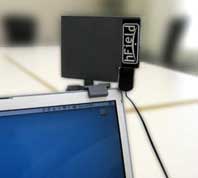
For the last six months, I've been using this small, directional USB adapter to hit marginal hotspots when parked. I'm traveling full-time now in a big bus/RV, so I've been everywhere and anywhere, and it really does work. One example: I was in a remote Alabama campground and their little access point was perhaps a few hundred feet away. With the internal Wi-Fi adapter in my Thinkpad (it's Mac/PC compatible), no go. With the Wi-Fire aimed carefully I got a solid, workable signal. I just rotate it around until I get the best signal. It does seem highly directional, too: an eighth-turn can make a huge difference and it's much, much stronger than with the internal adapter (the company claims up to 1000ft.). The big advantage, aside from the price, is that it uses a standard USB cable, so it can easily be extended and moved around unlike a Wi-Fi antenna which needs special cabling, connectors and isn't compatible with all Wi-Fi adapters. I keep dreaming up ways to do the ultimate, automatic long range communications antenna on the bus, but until then...

Source

Tuesday, November 13, 2007

Eye-Fi: First Wireless Memory Card for Digital Cameras


Now here's a great idea. Take a normal-looking 2GB SD card. Add a
wireless chip to it. Stick the whole thing into your camera, and before
you know it you've got a wireless camera. Now add a dose of software
smarts onto the SD card to manage the whole thing and what do you get?
You get a quick wireless ticket straight from your camera to any one of
17 different social networks or photo-sharing sites including Facebook, blogging sites like TypePad, photo-sharing sites like Flickr and Snapfish,
or your PC or Mac. If you've been lamenting how your photos never seem
to make it out of the camera, lament no more. The price? $99.99 with
2GB of storage (about 1,000 photos).

I caught up with Jef Holove, CEO of Eye-Fi,
shortly after this product was announced. He shed some additional light
on how stuff works behind the scenes. The card has everything,
including the software necessary to get you up and running. All you
need to do is tell the card which service you want your photos sent to.
It also archives the photos on your PC or Mac. And while you can belong
to multiple services, you can't send your photos to more than one at a
time. Currently the card supports JPEG files only, but transmits photos
without any degradation in resolution. It will resize the photos if the
online destination requires it.

Holove says, "Digital cameras
made it extremely easy to take pictures, but the rest of the process is
a hassle." Wireless, he says, will make things much easier. We'll have
a review unit momentarily and report back, but this sounds like a
winner.

Source


Thursday, August 23, 2007

Four Tips For Increasing Wireless Network Security

Passwords aren't enough to protect home wireless networks, and they're particularly poor security choices for networks of larger organizations, according to a University of Maryland assistant professor.

Michel Cukier, assistant professor of mechanical engineering and affiliate of the A. James Clark School of Engineering Center for Risk and Reliability and Institute for Systems Research, said that many users who link to an organization's network from home do so through their own unmanaged wireless networks. He released a paper Wednesday explaining the risks and outlining steps that wireless users can take to increase security.

"If these secondary connections are not secure, they open up the entire network to trouble," Cukier said in a prepared statement. "Unsecured wireless access points pose problems for businesses, cities, and other organizations that make wireless access available to customers, employees, and residents. Unsecured connections are an open invitation to hackers seeking access to vulnerable computers."

Cukier said there are several steps that wireless network owners and administrators can take to improve security and discourage "parasites" trolling for access and unsecured connections.

First, he suggests limiting the strength of wireless networks so they cannot be detected beyond the walls of a home or office. Cukier advises disabling the Service Set Identifier broadcasting. SSID is a code attached to packets on a wireless network. It identifies each packet as part of that network and allows all wireless clients within range to spot the network. When it's disabled, it's more difficult for unauthorized users to spot the network.

Cukier said that regularly changing encryption keys may increase network protection. He said Wi-Fi Protected Access should be used when possible, because Wired Equivalent Privacy can be decrypted with special software.

Cukier said that MAC addresses can also increase protection if the wireless access point is set up to only accept connections from a known MAC address.